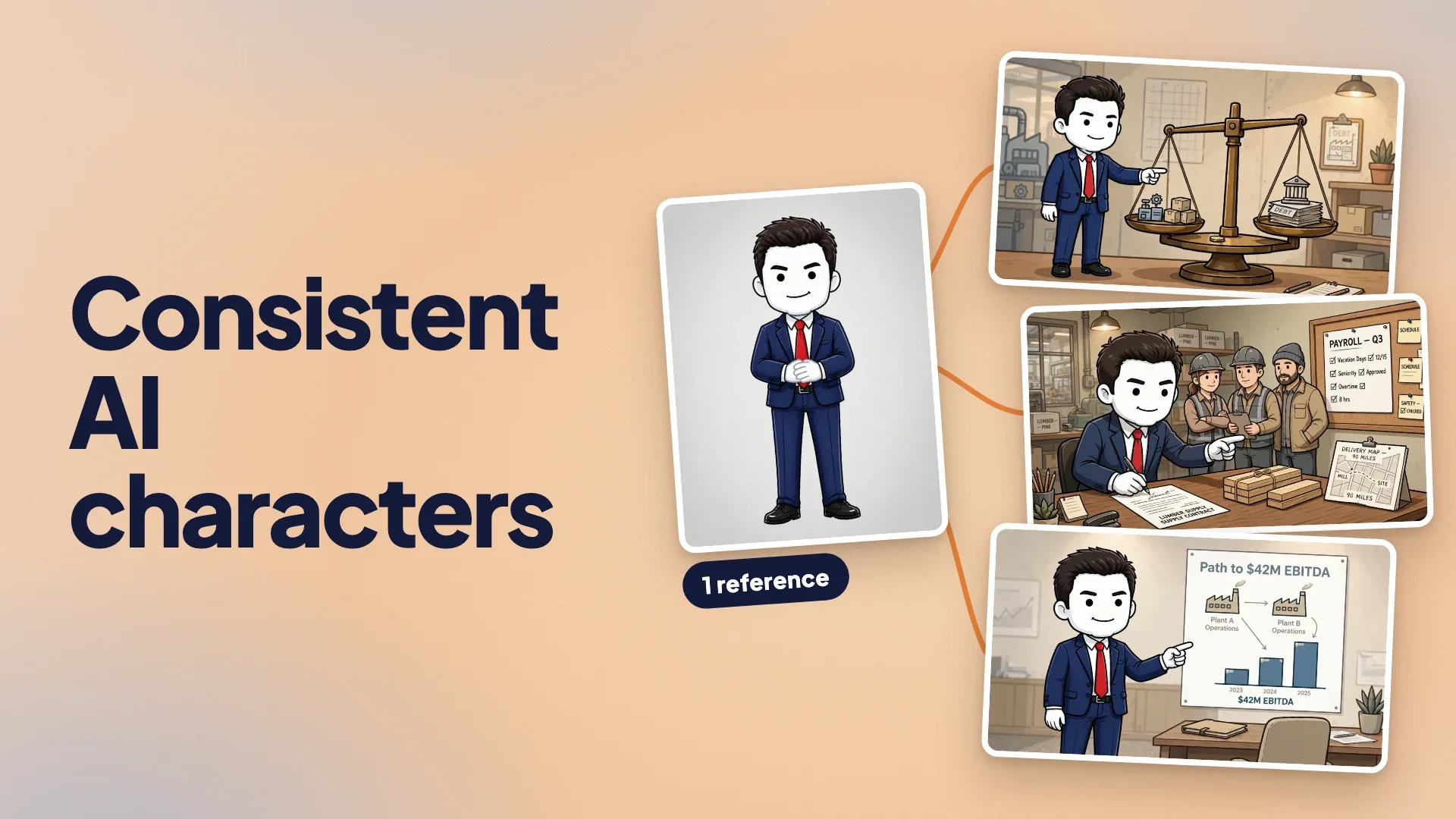
Ask an image model for "a young man in a navy suit and red tie" forty times and you get forty different young men. Each one matches the description, and none of them is the same person. In a single thumbnail that is fine. In a 15-minute video where the same host appears in a hundred scenes, it breaks the illusion within the first minute: the hair changes, the face gets longer, the tie turns maroon, and viewers stop believing they are following one character.
Consistent characters are a production problem, not a prompting trick. The fix is to stop asking the model to re-imagine the character in every scene and start showing it the character instead. This guide covers why characters drift, the techniques that actually hold a face steady, which image models can take reference images, and a real 112-scene example that kept one character from the first frame to the last.
Why AI Characters Change Between Scenes
A text-to-image model has no memory between generations. Every prompt is a fresh draw from everything the words could mean, so "short dark hair, round face, navy suit" lands on a different point in that space each time. Writing longer descriptions narrows the space but never closes it: two prompts with identical character text still produce two people, because the rest of the prompt (the setting, the pose, the lighting) pulls the face around with it.
Three things make drift worse in long-form video specifically:
- Volume. A 10-minute narrated video typically needs 60-120 scene images. A drift rate that looks acceptable across 5 images becomes obvious across 100.
- Variety of shots. Close-ups, wide shots, side views and crowd scenes each stress the model differently. A character that holds in a front-facing medium shot often falls apart in a wide shot where the face is a few dozen pixels.
- Other people in frame. When a scene adds a second character, the model tends to blend their features or swap clothing between them.
Techniques That Keep a Character Consistent
1. Use reference images instead of descriptions
This is the technique that matters most. Models that accept image inputs can take a picture of the character alongside the prompt and reproduce that identity in a new scene. The prompt then describes only what is new: the action, the setting, the camera.
A good reference is:
- One character per image, full body or at least head-to-waist, on a plain background.
- In the final art style. A photo reference for a cartoon video pulls the output toward realism; a cartoon reference for a cartoon video holds both the identity and the look.
- Showing the distinctive details you need to persist: outfit, hairstyle, accessories, colour accents.
One clean reference image is often enough for a stylised character with strong features (a mascot, a cartoon host). Realistic human faces benefit from two or three angles, such as front, three-quarter and profile, because a single front view gives the model nothing to go on when it needs to draw a side view.
2. Keep the character out of the prompt text
This is counterintuitive. Once a reference image carries the identity, describing the face again in the prompt usually hurts: the model now has two sources of truth and splits the difference. Refer to the character by role or name ("the host stands beside the scale") and let the reference do the work. Spend the prompt's words on the scene.
3. Lock the style separately from the character
Style drift and identity drift look similar but have different causes. Keep a fixed style block (line weight, palette, lighting, rendering) word-for-word at the same position in every prompt, and keep the character reference separate. When something changes, you can tell whether it was the style text or the identity that moved.
4. Only attach the characters who are in the shot
If your video has three recurring characters, do not attach all three references to every scene. A scene with only the narrator should get only the narrator's reference; extra references invite the model to add people who are not in the script or to blend faces. This is the step that gets tedious by hand on a 100-scene video, because you have to decide, scene by scene, who is present.
5. Animate the still, not the prompt
For moving scenes, generate a consistent still image first, then use an image-to-video model to animate it. Text-to-video from a description reintroduces exactly the drift you just solved. Starting from an approved frame means the first frame of every clip already has the right face.
6. Review in sequence, not one image at a time
Drift is invisible when you approve images one by one. Look at the whole run as a contact sheet or a scrubbed timeline and regenerate the outliers. It takes minutes and catches the scene where the tie changed colour. The AI video quality checklist has a fuller pre-publish review.
Which Image Models Accept Reference Images
Character consistency depends on two properties: whether a model accepts input images at all, and how many it can take per generation. The number matters as soon as a scene has two or three recurring characters plus a style reference.
| Model family | Takes reference images | Good for |
|---|---|---|
| Nano Banana (Google Gemini image models) | Yes, multiple per request | Faithful identity transfer, multi-character scenes |
| GPT Image (OpenAI) | Yes, multiple per request | Prompt adherence with text and props in scene |
| Seedream (ByteDance) | Yes, multiple per request | Large casts, high resolution |
| Grok Imagine (xAI) | Yes, a smaller number | Keeping a supplied still's composition |
| Muse Image (Meta) | Yes, multiple per request | High-volume scene lists at a value price |
| Flux Schnell, Imagen 4 | Text-to-image only in typical integrations | Characterless B-roll, not recurring characters |
Exact reference limits differ by version and by the platform you access a model through, so check the current number wherever you generate. The practical rule: for a single recurring host, almost any reference-capable model works; for ensemble scenes, choose one that takes enough references to fit every character in the shot plus your style reference without dropping one. Our broader comparison of AI image generators for YouTube covers the other criteria.
A Real Example: One Character Across 112 Scenes
Here is an unedited run from our own channel, Frankie Finance: a business-story video built around the channel's cartoon host in a navy suit and red tie. The run started from a single uploaded reference image (left) and produced 112 scene images, 107 of which feature the host. The right-hand side shows six of them, taken from across the whole video.
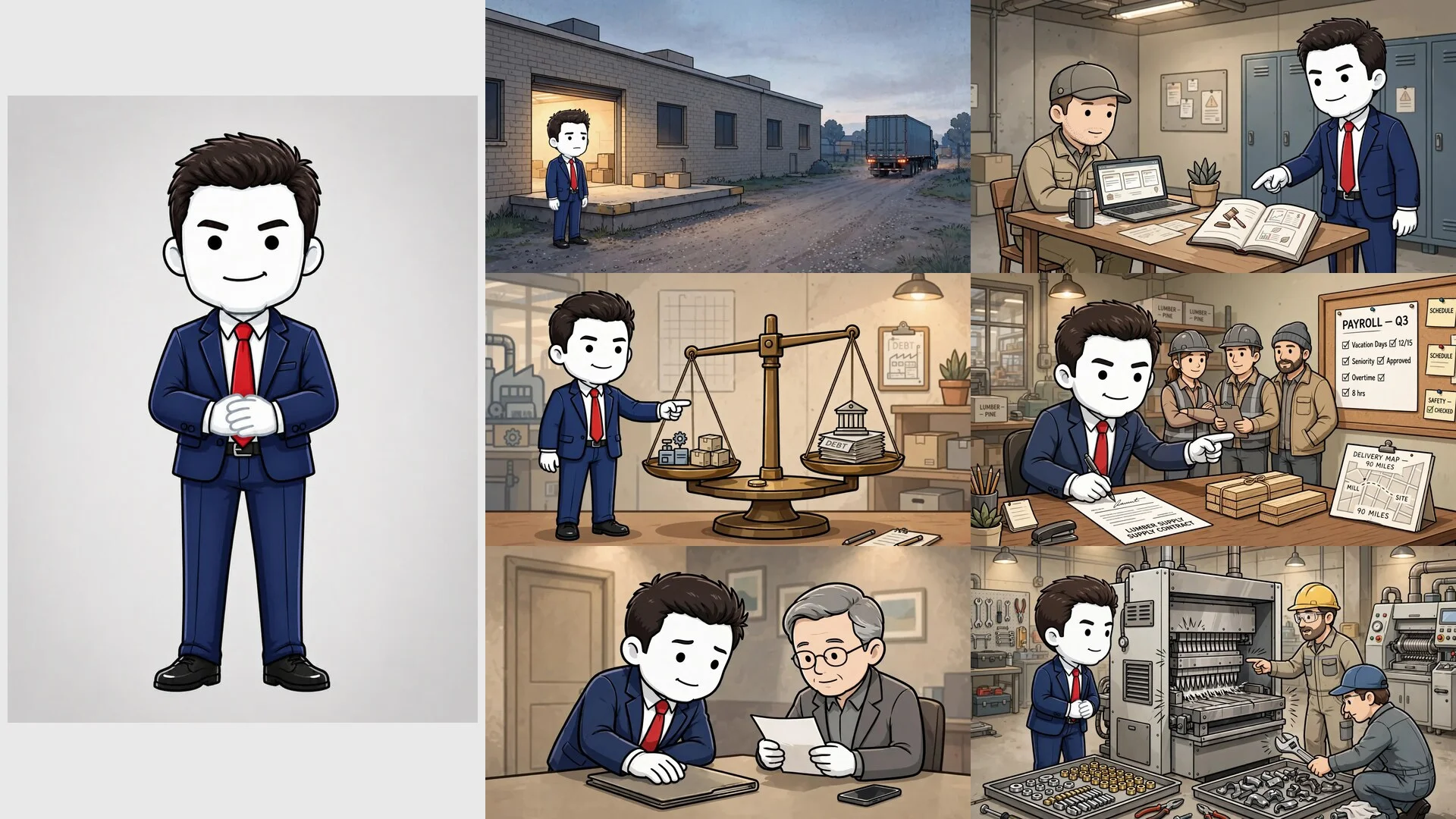
What held, across wide shots, close-ups and scenes shared with other people: the hairstyle, the face shape, the suit, the red tie and the white gloves. None of the six images was retouched.
The prompts show technique 2 in practice. This is the actual prompt for the balance-scale scene, trimmed:
Clean 2D digital cartoon with thick black outlines, simple shapes, minimal facial features, and light cel-shading. In a tidy factory office under warm tungsten light, {{character}} stands beside a large balance scale, pointing toward a small coin on the center platform. One pan holds simplified factory assets - a machine icon and stacked goods - while the other holds a taller stack of debt papers and a bank icon [...] Muted beige, tan, gray, and desaturated blue palette with a small red accent [...]
The character is a placeholder that resolves to the reference image. The prompt never describes his face, hair or clothes. Every word goes to the style block (identical at the start of each prompt) and to the scene. The five scenes without the host, such as an empty warehouse, simply did not attach the reference, so no stand-in host appeared in them.
Making Character Videos in AutoTube.pro
That example was made in AutoTube.pro, and the workflow above is what its consistent characters feature automates:
- Define the cast once. Upload a reference image for each character, or generate one from the script, and the cast belongs to the project. It carries across every scene and across later videos in the series.
- Scene-by-scene casting. AutoTube reads the narration for each scene, works out who is actually in it, and attaches only those characters' references (technique 4 above, done for you). A scene with nobody in it stays empty rather than gaining a stand-in.
- Reference-capable models only. When characters are on, the model pickers only offer models that accept references. The default, Muse Image, takes up to ten reference images per scene; Nano Banana 2.1 takes up to fourteen for larger ensembles; GPT Image 2.5 Flare is the pick when scenes carry readable text and props.
- Animate from the approved frame. Any scene can be turned into a clip with an image-to-video model, starting from the consistent still.
The rest of the pipeline (script, voiceover, timing and the long-form render) runs in the same project, so the character work is not a separate tool you round-trip images through.
Start With One Character
If you are adding a recurring character to a channel for the first time, start with one host: a single clean reference in your final style, a fixed style block, and a 10-scene test where you look at the results side by side before committing to a full video. When that holds, add a second character and test the scenes where they share the frame, which is where most setups fail.
To try it on your own script, the plans page shows what each tier includes.