A copyright notice appears on your new documentary. The video is still online, but someone else may be collecting its ad revenue. Is your channel one mistake away from losing everything?
A Content ID claim and a copyright strike call for different responses. Identify which notice you received before deleting the upload, removing audio, or submitting a dispute. For a long-form narrated video, an impulsive fix can damage the episode more than the original claim.
YouTube Copyright Claim vs Strike: The Difference
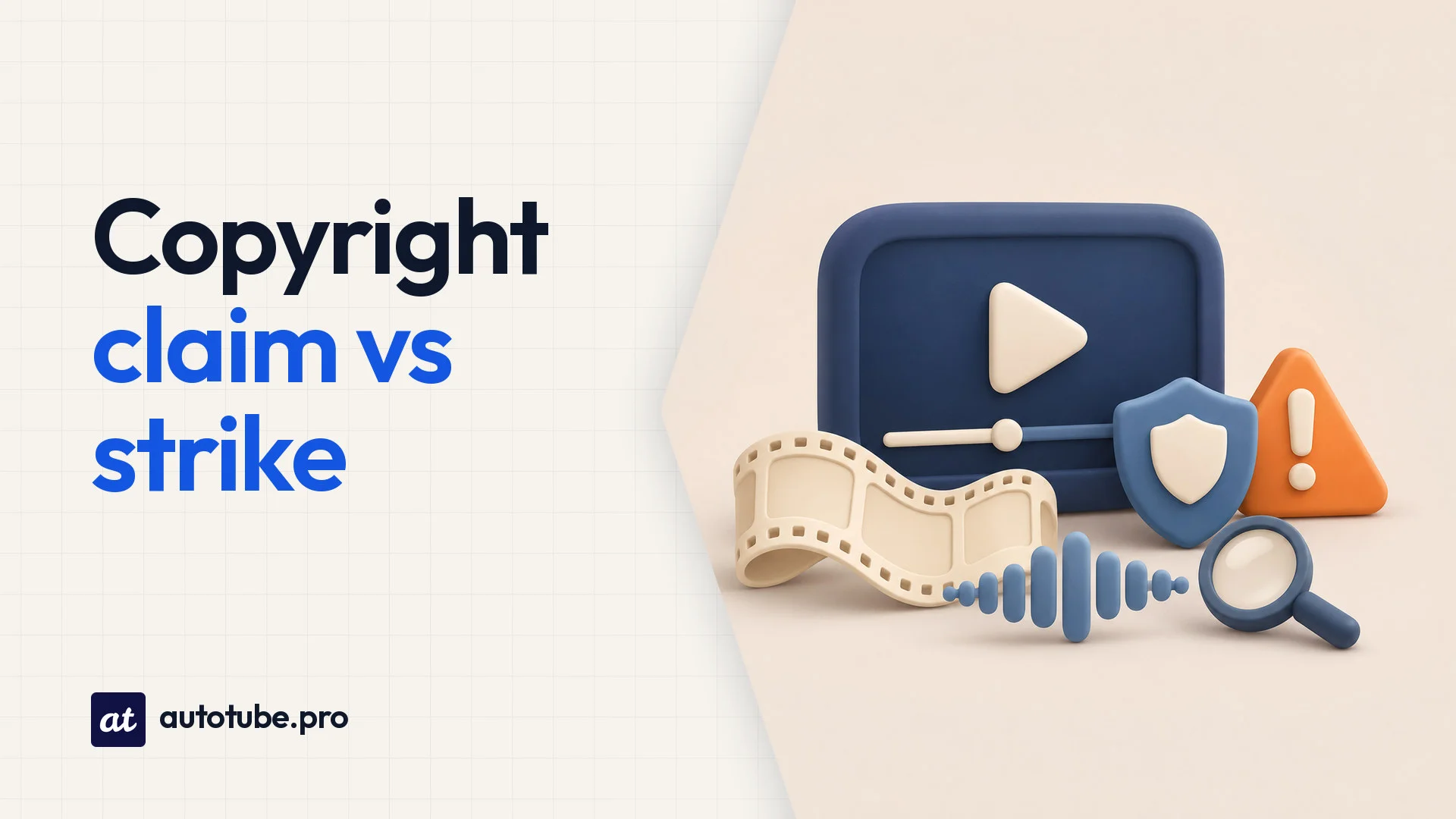
A Content ID claim can follow a match between your upload and material in YouTube's reference system. Depending on the rights holder's settings, it can monetize, track, or block the video, sometimes differently by country. Claims usually affect the individual video rather than the channel. YouTube's claims guide explains these outcomes.
A copyright strike follows a copyright removal request that YouTube considers apparently valid. The content is removed, and the strike affects your channel. It is a separate process from an ordinary Content ID claim. See YouTube's strike guidance.
| What you find | What it means | First response |
|---|---|---|
| A claim with monetization or tracking | The video may remain available under the claimant's policy | Read the affected content and restrictions |
| A claim that blocks viewing | The claim restricts the video's availability | Check the territories and identify the matched asset |
| A removal notice and active copyright strike | The video has been taken down through the removal process | Read the strike notice and available resolution options |
A blocked video does not, by itself, prove that you received a strike. Open the notice and read its details rather than judging by whether a friend can play the upload.
First, Record What Was Actually Claimed
Open YouTube Studio, find the affected video, and open its claim or restriction details. Interface labels can vary; use the notice attached to that video as your starting point.
Before changing anything, save a small incident record:
- The video URL and upload title.
- The notice type and claimant.
- The matched work and affected timestamps.
- The visibility and monetization effects shown.
- The source file, receipt, licence, or permission associated with that asset.
Treat the timestamp as a pointer into your production files. If the claimed interval contains narration, background music, and archive footage, listen to and inspect each layer. Do not assume the background song caused it just because music claims are familiar.
Imagine a history episode whose matched interval contains a museum photograph and a dramatic music bed. Replacing the photograph would waste work if the claim identifies the recording. Conversely, erasing the music cannot repair a visual claim. Write down the named work before opening an editor.
This record also helps when a collaborator assembled the episode. Asking for “the licence for the music file used at 18:42” is more useful than asking whether everything was copyright-free.
If It Is a Claim, Choose the Smallest Useful Fix
You have two decisions: whether the claim appears correct, and whether its effect is acceptable. A dispute is not a routine step to run on every notice.
When you have evidence the claim is wrong
YouTube lists necessary rights, misidentification, and applicable copyright exceptions among possible grounds for a dispute. Giving credit, owning a copy, or choosing not to monetize are not valid grounds on their own. The claimant reviews the initial dispute and can take up to 30 days to respond. A valid removal request during the process can lead to removal and a strike. Read the official dispute guidance before submitting.
Match your evidence to the specific asset and use. A subscription receipt with no track identifier is less useful for explaining a music claim than a receipt accompanied by the track's licence document and the relevant terms. If the basis depends on a legal exception you do not understand, get qualified advice before escalating.
When removing the material is the better choice
For eligible claimed content, Studio offers trimming, replacing a song, or erasing audio. Successful removal can clear the associated claim without a new upload. Save a backup first: YouTube says saved Studio edits cannot be reverted. Preview the complete affected passage before saving. YouTube's removal instructions describe the available tools.
The right choice depends on what the audience needs to keep. For a narrated explainer, preserving the explanation usually matters more than preserving a particular music cue. For a documentary built around an archive sequence, removing that sequence may require rewriting the argument around it.
Worked Example: A Music Fix That Deletes the Explanation
Consider a hypothetical documentary with a music claim from 18:42 to 19:26. The narration explains why a canal lock uses two gates. A diagram changes halfway through the passage.
Muting all sound across that 44-second interval would leave the viewer watching a diagram with no explanation. Trimming the interval would also remove the explanation, plus the transition into the next scene. Either action might address the matched material while creating an obvious editorial hole.
Use this repair order:
- Keep a copy of the current export and the separate narration file.
- Preview song-only removal if Studio offers it. Listen for lost syllables, watery speech, and abrupt changes at both boundaries.
- If the result damages the voice, compare it with a replacement made from the original project, where music and narration remain separate.
- If you choose to trim instead, rewrite or reconnect the surrounding explanation. Check every later chapter timestamp against the resulting video.
- After processing, inspect the notice again and watch the repaired passage. A cleaner soundtrack and a resolved claim are separate checks.
Those are editorial recommendations, not a guarantee that a particular tool will separate every mix cleanly. The key production habit is to retain a voice-only file. A finished stereo export is useful for publishing; it is a poor substitute for the parts when you need repairs.
If a replacement export introduces timing problems, use the symptom-based guide to YouTube audio out of sync. If you remove footage and replace it with explanatory material, the guide to adding B-roll without breaking narration helps keep the visual sequence connected.
If It Is a Strike, Follow the Removal Notice
Deleting an already-removed video does not normally resolve its strike. YouTube describes three resolution routes: completing Copyright School and waiting for expiry, obtaining a retraction, or submitting a valid counter notification. Its guidance says strikes expire after 90 days when the requirements are met, and three active copyright strikes can put a channel at risk of termination.
A scheduled removal has a distinct exception: the notice may give you seven days to delete the content and avoid the strike. Check whether your actual notice provides that option. Do not apply that exception to a strike already issued.
A counter notification is a legal process. If you believe a removal was mistaken, review the official instructions and your evidence before choosing that route. Do not copy a template that asserts ownership or permission you cannot substantiate.
For your production team, pause reuse of the disputed asset while you investigate. Search upcoming projects for the same source filename. That is more useful than rushing another export with the same unresolved material.
Producing Replacement Scenes With Fewer Handoffs
For long-form faceless creators who need to rebuild an episode's visuals, AutoTube.pro is one production option. Its scene visuals tools combine generated images, clips, and stock footage timed to narration. That can help when a replacement scene needs an explanatory illustration rather than another borrowed clip.
For example, a canal documentary can use an illustrative view of a lock chamber instead of relying on a television extract. Label reconstructions appropriately in your narration or presentation, and check that the illustration actually depicts the mechanism you explain. Generating a scene does not authenticate its history or prove that it is accurate.
The platform also provides cloud rendering for long-form videos, which can reduce the local export burden after a revised production. Keep the narration and replacement assets you need for future corrections alongside the final file.
These are production capabilities. They do not decide copyright ownership, clear an existing claim, or replace Studio's dispute process. A conventional editor is also a reasonable choice when you already have a finished project and only need a narrow repair.
Make the Next Upload Easier to Repair
Keep separate audio, identifiable source assets, and the permissions associated with them. When a notice arrives, classify it first, inspect the matched passage, and choose a response that preserves the episode's meaning.
If repeated asset handoffs are making long-form production difficult, explore the production options above for your next project. Keep the claim-resolution decision grounded in the notice and the evidence you actually have.